Since 25.08 It will not be possible to log in to Millenet from the version of the browser you are now using. Update the browser on your device and use online banking in a comfortable and secure way.
Update the browser
Make transfer and pay bill on your phone
It's easy to use the mobile app. You enter 4 digits or use your fingerprint, you're in your account, where you can make transfers and much more
Money transfer, step by step
Ordering a domestic transfer on your phone, in mobile app, is easy and secure. You just need to know the recipient's details.
-
1
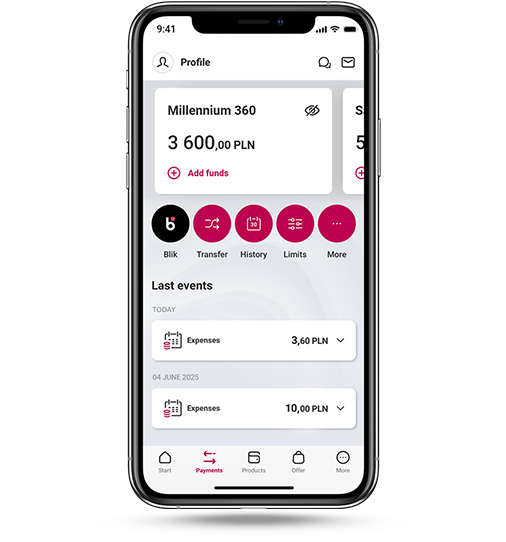
Log in to the app and click Transfer
-
2
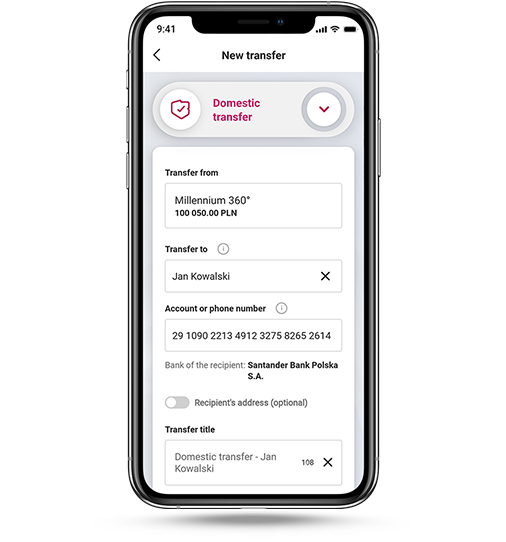
Fill out the short form, each field is described in detail. If you pay bills, remember to enter the title of the transfer according to what is written on the invoice
-
3
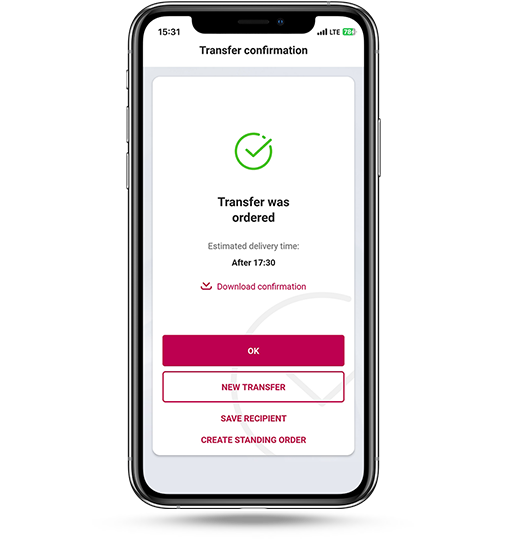
Confirm the transfer with PIN or fingerprint


The invoice you pay has a printed square code (QR code)?
You can pay your bill without rewriting any data. Choose from the menu Payments > Scan the code and pay. Point your phone at this code, all data will be filled in automatically.
BLIK transfer to mobile
It's a free transfer that arrives instantly, even on holidays - all you need is the recipient's phone number.

- You don't need to know the recipient's account number.
- In the transfer form you enter the phone number or choose from a list of contacts on your phone.
- The BLIK icon next to the selected contact will show you if the recipient can receive a BLIK transfer (if they have a phone number assigned to the bank account).

Make your first BLIK transfer to mobile
-
1
Log in to the app and click Transfer
-
2
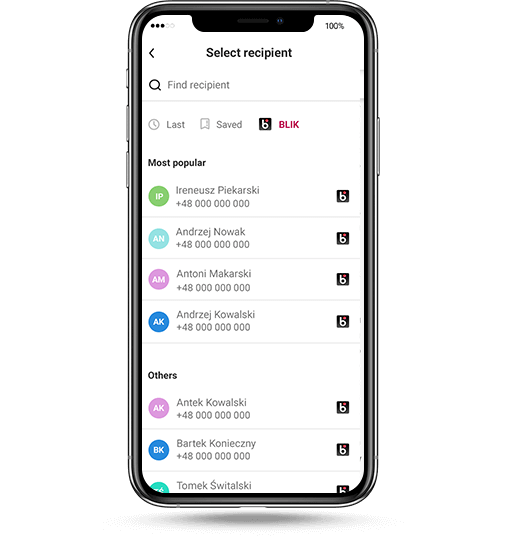
Enter name and phone number of the recipient or choose from the BLIK contact list
-
3
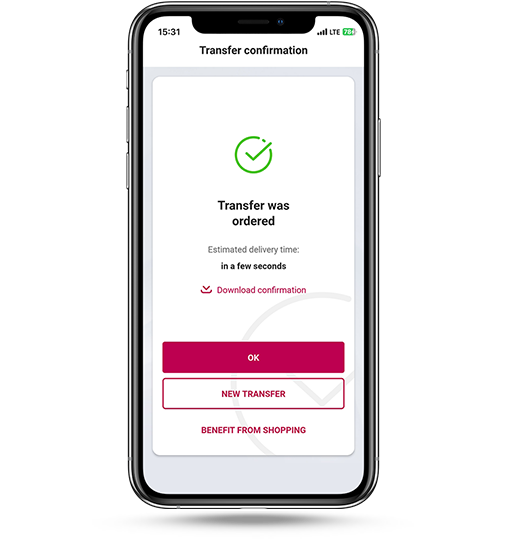
Confirm the transfer with PIN or fingerprint


Check more possibilities
Do you want to use more features? Here you can find all the information need.
-
What are the types of wire transfers and why so many?
Before making a transfer, think about who you want to send money to and how. We have several types of transfers to make it easier for you. Most often you will use a domestic transfer, but you can also:
- transfer money between your accounts,
- send a foreign transfer,
- send a contribution to ZUS,
- pay tax or customs duties,
- make a credit card transfer.
Please note that we charge a fee for some of these transfers. Information about the cost is always visible at the bottom of the form.
-
What is an instant transfer?
The recipient needs money immediately? Make an instant transfer. The money will arrive in a few seconds. At the bottom of the form, check the Instant transfer box.
Remember that we charge a fee for such a transfer in accordance with the price list. Information about the cost is always visible at the bottom of the form.
-
Where can you find the transfer confirmation?
After selecting the History button, a list of executed transactions will be displayed. Select the transfer for which you want to download a confirmation, click Transaction details, and then select Download confirmation.
-
What is a standing order and how can I set one up?
If you wish to regularly send a transfer of the same amount to the same recipient, you may set up a standing order.
To add a standing order in the menu select: Payments > Transfers > Standing order > New standing order.
-
How do I save a recipient to whom I want to make transfers more often?
If you often make a transfer to a given person, save them to the list of recipients. When making a transfer, select Add this recipient to your list of recipients.
If you add the recipient to your trusted ones, the transfers will be sent without the need for additional confirmation, e.g. by an SMS password.
-
What does it mean that a recipient is trusted and how to add him?
When adding a new recipient, select Trusted Recipient and confirm your choice with Password 1. From now on, you can send transfers to this recipient without entering a password.
-
How do I cancel a transfer with a future execution date?
If you’ve ordered a transfer with a future due date and you need to change or cancel it, just go to: Payments > Upcoming payments.
Good to know: You can use the same steps to cancel a foreign currency transfer if you set it up after the cut-off time and it’s waiting to be sent (in Upcoming payments).
We’ll send it on the next business day, and you can cancel it until then. Once a foreign currency transfer has been sent and appears in your transaction history, it can’t be cancelled.

You can always use our help. After entering the menu, select the Contact icon at the top of the screen in order, for example, to quickly connect with a consultant.